

I am going to be using mirror mode with this program... I would like the compare to *only* show files that differ from one side to the other... I will be wanting simply to sync changes in my reference copy into my usage copy...
This seems like a natural feature to have, but I can't find it in my initial search through the options; could someone provide a pointer to this feature??
new user: compare: show different files only?
-

- Posts: 3
- Joined: 7 Sep 2022
- Posts: 1246
- Joined: 8 May 2006
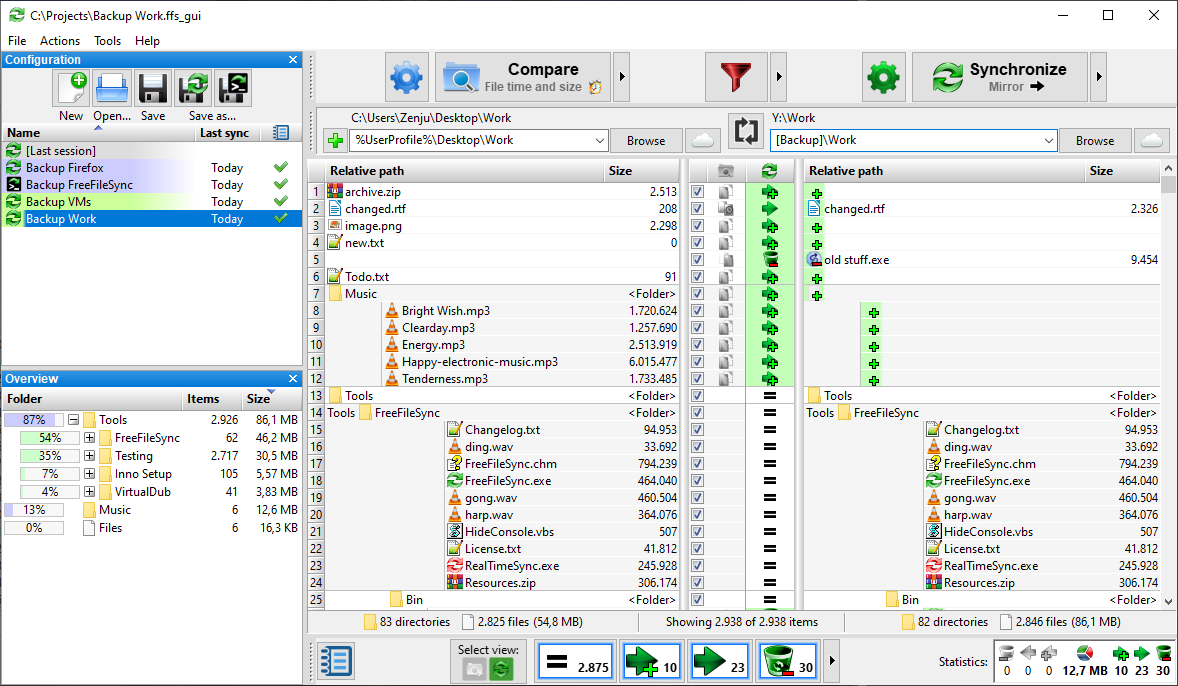
I believe ? on the bottom status bar, the '= 2875', will do what you want.
https://freefilesync.org/images/screenshots/Windows.png
https://freefilesync.org/images/screenshots/Windows.png
-
- Posts: 3
- Joined: 7 Sep 2022
Thank you, @therube !!
Actually, my screen looks slightly different than this image, but now that I'm looking at the bar on the bottom, I see the icon for "select files that are different", which is just what I want!!
thank you again!
Actually, my screen looks slightly different than this image, but now that I'm looking at the bar on the bottom, I see the icon for "select files that are different", which is just what I want!!
thank you again!
- Posts: 6
- Joined: 14 Oct 2022
Hi,
I can't find this button either. Is this away in the new version? How can I list in the left folder all files, which are also in the right folder?
I can't find this button either. Is this away in the new version? How can I list in the left folder all files, which are also in the right folder?
-
- Posts: 3
- Joined: 7 Sep 2022
Yeah, when you first open the program, the bottom of the screen is blank, no buttons are present.I can't find this button either. Is this away in the new version? How can I list in the left folder all files, which are also in the right folder? mxmx, 14 Oct 2022, 13:35
Once you click the Compare button at the top, and complete one compare, then the options buttons appear at the bottom.
- Posts: 6
- Joined: 14 Oct 2022
As told in the other thread, its only there, if there are identical files. I didn't knew - and I dont think its a good idea.Yeah, when you first open the program, the bottom of the screen is blank, no buttons are present.I can't find this button either. Is this away in the new version? How can I list in the left folder all files, which are also in the right folder? mxmx, 14 Oct 2022, 13:35
Once you click the Compare button at the top, and complete one compare, then the options buttons appear at the bottom. Gorlash, 14 Oct 2022, 16:07
- Posts: 4946
- Joined: 11 Jun 2019
So you want a button to show up that doesn't do anything? That's worseAs told in the other thread, its only there, if there are identical files. I didn't knew - and I dont think its a good idea. mxmx, 14 Oct 2022, 19:39Yeah, when you first open the program, the bottom of the screen is blank, no buttons are present.I can't find this button either. Is this away in the new version? How can I list in the left folder all files, which are also in the right folder? mxmx, 14 Oct 2022, 13:35
Once you click the Compare button at the top, and complete one compare, then the options buttons appear at the bottom. Gorlash, 14 Oct 2022, 16:07
- Posts: 6
- Joined: 14 Oct 2022
Let me try to explain again with an example. I have Folder A and Folder B. Both should be the same, so I want to delete one. I did a mistake and choosed in FFS not Folder A for comparing, but Folder C. FFS doesn't shows, that there are no identicals (because there aren't identicals). For a beginner as me it looks strange. Why cant I see, that the folders have 100% identicals? Would FFS show that there are 0 twins, I would notice directly, that I made a mistake. But it shows nothing so you dont notice the mistake.So you want a button to show up that doesn't do anything? That's worse xCSxXenon, 14 Oct 2022, 21:30As told in the other thread, its only there, if there are identical files. I didn't knew - and I dont think its a good idea. mxmx, 14 Oct 2022, 19:39
Yeah, when you first open the program, the bottom of the screen is blank, no buttons are present.
Once you click the Compare button at the top, and complete one compare, then the options buttons appear at the bottom. Gorlash, 14 Oct 2022, 16:07
I dont like, when I have seen buttons before and now they are hiding :)