

I have a normal FFS job to mirror 3 folders on my desktop to corresponding folders on a disk attached to my router. This works as expected.
I saved that job as a batch file and loaded it int RealTimeSync and saved it.
Realtimesync throws an error when it starts saying it can't find the first network folder.
Can ayone advise, please?
Can't real-time sync to a network folder
- Posts: 13
- Joined: 22 Oct 2016
-

- Posts: 2946
- Joined: 22 Aug 2012
> Realtimesync throws an error when it starts saying it can't find the first network folder.
Be aware that network folders that are mounted under a drive letter, are (Windows) user specific.
If you run your RTS task under different user credentials, the drive letter may not exist or refer to another (network) location.
Similarly, if the network location requires specific (network) user credentials, these credentials may be unknown or different when running the RTS task as a different Windows user.
How do you start your RealTimeSync (RTS) job?
By default, the Windows Windows Task Scheduler runs tasks as the System user. That user does not have network access at all.
If, when creating the task, you select Create Task (as opposed to Create Basic Task) you can select the Windows user credentials under which you scheduled task will run.
Although it does not match your error description, it may also be that the network location does not support directory monitoring (monitoring directories for changes). If so, you can not use RTS to keep those locations in sync.
Instead, you can than run your FFS batch job at regular intervals (e.g. from the Task Scheduler).
The same considerations regarding user credentials do apply.
Be aware that network folders that are mounted under a drive letter, are (Windows) user specific.
If you run your RTS task under different user credentials, the drive letter may not exist or refer to another (network) location.
Similarly, if the network location requires specific (network) user credentials, these credentials may be unknown or different when running the RTS task as a different Windows user.
How do you start your RealTimeSync (RTS) job?
By default, the Windows Windows Task Scheduler runs tasks as the System user. That user does not have network access at all.
If, when creating the task, you select Create Task (as opposed to Create Basic Task) you can select the Windows user credentials under which you scheduled task will run.
Although it does not match your error description, it may also be that the network location does not support directory monitoring (monitoring directories for changes). If so, you can not use RTS to keep those locations in sync.
Instead, you can than run your FFS batch job at regular intervals (e.g. from the Task Scheduler).
The same considerations regarding user credentials do apply.
- Posts: 13
- Joined: 22 Oct 2016
Thanks for your reply.
When I double-click the batch file it runs with no problems.
When I run RealTimeSync by double-clicking the executable inside the ProgramFiles\FreeFileSync folder and start from the GUI, it fails.
The network disk does not have a drive letter it is referenced as \\192.168.1.1\etc.
At this time I've not tried to run it via task scheduler.
When I double-click the batch file it runs with no problems.
When I run RealTimeSync by double-clicking the executable inside the ProgramFiles\FreeFileSync folder and start from the GUI, it fails.
The network disk does not have a drive letter it is referenced as \\192.168.1.1\etc.
At this time I've not tried to run it via task scheduler.
-
- Posts: 2946
- Joined: 22 Aug 2012
> When I double-click the batch file it runs with no problems.
That is to be expected, because you then run FFS under the credentials of the user that double-clicks the *.ffs_batch file. For that user, the network credentials for \\192.168.1.1\etc are likely stored in the Credential Manager. Or do you need to enter network credentials?
> When I run RealTimeSync by double-clicking the executable inside the ProgramFiles\FreeFileSync folder and start from the GUI, it fails.
Not clear what is happening.
You double-click the RTS executable, and then the RTS GUI opens?
You then import/drag the above *.ffs_batch file into the RTS GUI, such that the locations and Command Line are filled?
You then click Start in the RTS GUI, and then RTS tells you it can not find \\192.168.1.1\etc?
That is to be expected, because you then run FFS under the credentials of the user that double-clicks the *.ffs_batch file. For that user, the network credentials for \\192.168.1.1\etc are likely stored in the Credential Manager. Or do you need to enter network credentials?
> When I run RealTimeSync by double-clicking the executable inside the ProgramFiles\FreeFileSync folder and start from the GUI, it fails.
Not clear what is happening.
You double-click the RTS executable, and then the RTS GUI opens?
You then import/drag the above *.ffs_batch file into the RTS GUI, such that the locations and Command Line are filled?
You then click Start in the RTS GUI, and then RTS tells you it can not find \\192.168.1.1\etc?
- Posts: 13
- Joined: 22 Oct 2016
I don't need to enter credentials each time. They are stored in the gredentials manager.
The run which fails:
I go to C:\Program Files\FreeFileSync and double-click RealTimeSync.exe
This opens the GUI with with the details from the batch file already set.
I click "Start" and the RTS icon appears in the task bar, flashing red and green
Please see attached screenshots for more detail
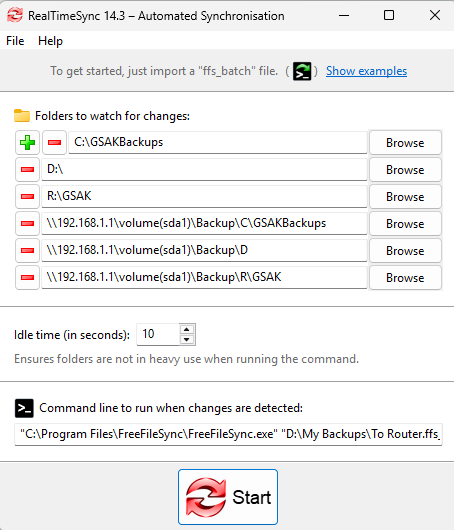
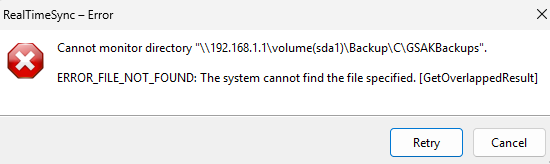
The run which fails:
I go to C:\Program Files\FreeFileSync and double-click RealTimeSync.exe
This opens the GUI with with the details from the batch file already set.
I click "Start" and the RTS icon appears in the task bar, flashing red and green
Please see attached screenshots for more detail
-
- Posts: 2946
- Joined: 22 Aug 2012
I'm not sure what renders this RealTimeSync-error.
It may simply be that, as I wrote in my first reply, your router (network location \\192.168.1.1) does not support directory monitoring, and that the second part follows from that.
Or there may be something special to the mentioned network folder.
For your use case it might however be irrelevant.
It seems you make a backup of the first three listed folders (on C, D and R) to the respective listed three network locations.
If it is truly a backup, and thus changes only originate in any of the first three (non-network) locations, there is no need to monitor your network location for changes.
You can then simply remove the three network locations from the RTS list of folders to be monitored (via the red minus-icon in front of those locations).
P.S.
You now apparently depend on RTS remembering its last configuration.
Don't forget to save your RTS configuration as a *.ffs_real file via the File main menu in the RTS GUI.
It may simply be that, as I wrote in my first reply, your router (network location \\192.168.1.1) does not support directory monitoring, and that the second part follows from that.
Or there may be something special to the mentioned network folder.
For your use case it might however be irrelevant.
It seems you make a backup of the first three listed folders (on C, D and R) to the respective listed three network locations.
If it is truly a backup, and thus changes only originate in any of the first three (non-network) locations, there is no need to monitor your network location for changes.
You can then simply remove the three network locations from the RTS list of folders to be monitored (via the red minus-icon in front of those locations).
P.S.
You now apparently depend on RTS remembering its last configuration.
Don't forget to save your RTS configuration as a *.ffs_real file via the File main menu in the RTS GUI.
- Posts: 13
- Joined: 22 Oct 2016
OK, I've done all that and RTS now starts with no error
As a test, I deleted an old text file from my D:\ disk and watched the corresponding file in the network backup D:\ folder.
It has been 10 minutes and the network version of the text file is still there
As a test, I deleted an old text file from my D:\ disk and watched the corresponding file in the network backup D:\ folder.
It has been 10 minutes and the network version of the text file is still there
-
- Posts: 2946
- Joined: 22 Aug 2012
Did RTS start an FFS Sync? (check the FFS log)
If not, it might be that at least one of your monitored locations (and/or their subdirectories) experiences very frequent file activity. RTS will only start the FFS sync when no further activity is detected in any of the monitored locations for at least the RTS Idle time.
In your case, the most likely candidate for frequent write activity seems to be your D-drive, which is RTS monitored in its entirety.
If not, it might be that at least one of your monitored locations (and/or their subdirectories) experiences very frequent file activity. RTS will only start the FFS sync when no further activity is detected in any of the monitored locations for at least the RTS Idle time.
In your case, the most likely candidate for frequent write activity seems to be your D-drive, which is RTS monitored in its entirety.
- Posts: 13
- Joined: 22 Oct 2016
I've tried looking for FFS.log, but I can't find it.
Where is it located, please?
Where is it located, please?
- Posts: 13
- Joined: 22 Oct 2016
OK, found the logs. I've just started a new RTS run and it hasn't created a log.
Looking at task manager there are two FFS tasks, one with (32bit) on the end and one without, and two RTS tasks, one with and one without. (I'm running a 64bit machine).
The two 64bit tasks are using a fraction of 1% CPU and a tiny bit of memory.
My D:\ drive isn't that busy and I did nothing to affect it for 10+ mimutes. Another test, just now, has a file deleted from D:\ not disappearing from the router disk
While I was typing, the task ended, a log appeared and it shows a typical manual job:
To Router 25/05/2025 2:52:43 PM
Completed successfully
Elements processed: 65 (3.30 GB)
Total time: 00:15:41
3:04:24 PM Info: 593,037 items found | Time elapsed: 00:11:38
3:04:25 PM Info: Synchronising folder pair: Mirror ->
C:\GSAKBackups
\\192.168.1.1\volume(sda1)\Backup\C\GSAKBackups
3:04:25 PM Info: Updating file "\\192.168.1.1\volume(sda1)\Backup\C\GSAKBackups\GSAKAuto4.zip"
3:04:53 PM Info: Updating file "\\192.168.1.1\volume(sda1)\Backup\C\GSAKBackups\GSAKAuto1.zip"
3:05:19 PM Info: Updating file "\\192.168.1.1\volume(sda1)\Backup\C\GSAKBackups\GSAKAuto2.zip"
3:05:47 PM Info: Updating file "\\192.168.1.1\volume(sda1)\Backup\C\GSAKBackups\GSAKAuto3.zip"
3:06:14 PM Info: Updating file "\\192.168.1.1\volume(sda1)\Backup\C\GSAKBackups\GSAKAuto5.zip"
3:06:41 PM Info: Synchronising folder pair: Mirror ->
D:\
\\192.168.1.1\volume(sda1)\Backup\D
3:06:41 PM Info: Deleting file "\\192.168.1.1\volume(sda1)\Backup\D\List of Codes.txt"
3:06:41 PM Info: Updating file "\\192.168.1.1\volume(sda1)\Backup\D\Gill\Red Hatters\RED HAT EXPLANATION.doc"
3:06:42 PM Info: Updating file "\\192.168.1.1\volume(sda1)\Backup\D\Mail\mail.gillandtony-3.com\Archives.msf"
3:06:42 PM Info: Updating file "\\192.168.1.1\volume(sda1)\Backup\D\Mail\mail.gillandtony.com\Inbox.msf"
3:06:42 PM Info: Updating file "\\192.168.1.1\volume(sda1)\Backup\D\Tony\2025 Silos trip\2025 Itinerary.ods"
3:06:42 PM Info: Creating file "\\192.168.1.1\volume(sda1)\Backup\D\My Backups\RealTime.ffs_real"
3:06:42 PM Info: Updating file "\\192.168.1.1\volume(sda1)\Backup\D\Tony\Medical History.odt"
3:06:43 PM Info: Updating file "\\192.168.1.1\volume(sda1)\Backup\D\Mail\mail.gillandtony-3.com\Drafts"
3:06:44 PM Info: Updating file "\\192.168.1.1\volume(sda1)\Backup\D\Mail\mail.gillandtony-3.com\Drafts.msf"
3:06:44 PM Info: Updating file "\\192.168.1.1\volume(sda1)\Backup\D\Mail\mail.gillandtony-3.com\Inbox"
3:06:59 PM Info: Updating file "\\192.168.1.1\volume(sda1)\Backup\D\Mail\mail.gillandtony-3.com\Inbox.msf"
3:06:59 PM Info: Updating file "\\192.168.1.1\volume(sda1)\Backup\D\Mail\mail.gillandtony-3.com\popstate.dat"
3:06:59 PM Info: Updating file "\\192.168.1.1\volume(sda1)\Backup\D\Mail\mail.gillandtony-3.com\Sent"
3:07:08 PM Info: Updating file "\\192.168.1.1\volume(sda1)\Backup\D\Mail\mail.gillandtony-3.com\Sent.msf"
3:07:08 PM Info: Updating file "\\192.168.1.1\volume(sda1)\Backup\D\Mail\mail.gillandtony-3.com\Trash"
3:07:08 PM Info: Updating file "\\192.168.1.1\volume(sda1)\Backup\D\Mail\mail.gillandtony-3.com\Trash.msf"
3:07:08 PM Info: Updating file "\\192.168.1.1\volume(sda1)\Backup\D\Mail\mail.gillandtony.com\Archives.msf"
3:07:08 PM Info: Updating file "\\192.168.1.1\volume(sda1)\Backup\D\Mail\mail.gillandtony.com\Drafts.msf"
3:07:08 PM Info: Updating file "\\192.168.1.1\volume(sda1)\Backup\D\Mail\mail.gillandtony.com\iiNet.msf"
3:07:08 PM Info: Updating file "\\192.168.1.1\volume(sda1)\Backup\D\Mail\mail.gillandtony.com\Inbox"
3:07:15 PM Info: Updating file "\\192.168.1.1\volume(sda1)\Backup\D\Mail\mail.gillandtony.com\popstate.dat"
3:07:16 PM Info: Updating file "\\192.168.1.1\volume(sda1)\Backup\D\Mail\mail.gillandtony.com\Sent"
3:07:18 PM Info: Updating file "\\192.168.1.1\volume(sda1)\Backup\D\Mail\mail.gillandtony.com\Sent.msf"
3:07:18 PM Info: Updating file "\\192.168.1.1\volume(sda1)\Backup\D\Mail\mail.gillandtony.com\Spam.msf"
3:07:19 PM Info: Updating file "\\192.168.1.1\volume(sda1)\Backup\D\Mail\mail.gillandtony.com\Trash.msf"
3:07:19 PM Info: Creating file "\\192.168.1.1\volume(sda1)\Backup\D\Pictures\Screenshots\Error.png"
3:07:19 PM Info: Creating file "\\192.168.1.1\volume(sda1)\Backup\D\Pictures\Screenshots\GUI.png"
3:07:19 PM Info: Updating file "\\192.168.1.1\volume(sda1)\Backup\D\Mail\mail.gillandtony-3.com\Archives.sbd\2025.msf"
3:07:19 PM Info: Synchronising folder pair: Mirror ->
R:\GSAK
\\192.168.1.1\volume(sda1)\Backup\R\GSAK
3:07:19 PM Info: Updating file "\\192.168.1.1\volume(sda1)\Backup\R\GSAK\apilog.txt"
3:07:20 PM Info: Updating file "\\192.168.1.1\volume(sda1)\Backup\R\GSAK\Macros\2025 Trip.kml"
3:07:21 PM Info: Updating file "\\192.168.1.1\volume(sda1)\Backup\R\GSAK\Macros\GetCachesByDatabaseName\Adventures\test.txt"
3:07:21 PM Info: Updating file "\\192.168.1.1\volume(sda1)\Backup\R\GSAK\babel.bat"
3:07:21 PM Info: Updating file "\\192.168.1.1\volume(sda1)\Backup\R\GSAK\data.txt"
3:07:21 PM Info: Updating file "\\192.168.1.1\volume(sda1)\Backup\R\GSAK\elevation.db3"
3:08:10 PM Info: Updating file "\\192.168.1.1\volume(sda1)\Backup\R\GSAK\errors.txt"
3:08:10 PM Info: Updating file "\\192.168.1.1\volume(sda1)\Backup\R\GSAK\GeoData.db3"
3:08:18 PM Info: Updating file "\\192.168.1.1\volume(sda1)\Backup\R\GSAK\gsak.db3"
3:08:18 PM Info: Updating file "\\192.168.1.1\volume(sda1)\Backup\R\GSAK\gsak.ini"
3:08:18 PM Info: Updating file "\\192.168.1.1\volume(sda1)\Backup\R\GSAK\GsakData.txt"
3:08:18 PM Info: Updating file "\\192.168.1.1\volume(sda1)\Backup\R\GSAK\MacroError.txt"
3:08:19 PM Info: Updating file "\\192.168.1.1\volume(sda1)\Backup\R\GSAK\searchbar.ini"
3:08:19 PM Info: Updating file "\\192.168.1.1\volume(sda1)\Backup\R\GSAK\StaticCopy.db3"
3:08:19 PM Info: Updating file "\\192.168.1.1\volume(sda1)\Backup\R\GSAK\toolbar.ini"
3:08:19 PM Info: Updating file "\\192.168.1.1\volume(sda1)\Backup\R\GSAK\html\2025Trip.html"
3:08:19 PM Info: Updating file "\\192.168.1.1\volume(sda1)\Backup\R\GSAK\Macros\GetCachesByDatabaseName.gsk"
3:08:20 PM Info: Updating file "\\192.168.1.1\volume(sda1)\Backup\R\GSAK\Macros\GetCachesByDatabaseName.xml"
3:08:20 PM Info: Updating file "\\192.168.1.1\volume(sda1)\Backup\R\GSAK\Macros\GetNearestCache.gsk"
3:08:20 PM Info: Updating file "\\192.168.1.1\volume(sda1)\Backup\R\GSAK\Macros\incsort.gsk"
3:08:20 PM Info: Updating file "\\192.168.1.1\volume(sda1)\Backup\R\GSAK\Macros\incsortandflag.gsk"
3:08:20 PM Info: Updating file "\\192.168.1.1\volume(sda1)\Backup\R\GSAK\Macros\LeafletMaps.xml"
3:08:21 PM Info: Creating file "\\192.168.1.1\volume(sda1)\Backup\R\GSAK\Macros\ReinstateCache.gsk"
3:08:21 PM Info: Updating file "\\192.168.1.1\volume(sda1)\Backup\R\GSAK\Temp\bb.db3"
3:08:21 PM Info: Updating file "\\192.168.1.1\volume(sda1)\Backup\R\GSAK\Temp\bmap.html"
3:08:22 PM Info: Updating file "\\192.168.1.1\volume(sda1)\Backup\R\GSAK\Temp\google.html"
3:08:22 PM Info: Updating file "\\192.168.1.1\volume(sda1)\Backup\R\GSAK\Temp\gsak_gmap_local.htm"
3:08:22 PM Info: Updating file "\\192.168.1.1\volume(sda1)\Backup\R\GSAK\Temp\gsak_gmap_strings.js"
3:08:22 PM Info: Updating file "\\192.168.1.1\volume(sda1)\Backup\R\GSAK\Temp\SplitScreen.htm"
3:08:22 PM Info: Updating file "\\192.168.1.1\volume(sda1)\Backup\R\GSAK\Data\2025 Trip\Log.htm"
3:08:22 PM Info: Updating file "\\192.168.1.1\volume(sda1)\Backup\R\GSAK\Data\2025 Trip\settings.ini"
3:08:22 PM Info: Updating file "\\192.168.1.1\volume(sda1)\Backup\R\GSAK\Data\2025 Trip\sqlite.db3"
Windows 11 (Version: 24H2) – User (Office) – ASUS
Looking at task manager there are two FFS tasks, one with (32bit) on the end and one without, and two RTS tasks, one with and one without. (I'm running a 64bit machine).
The two 64bit tasks are using a fraction of 1% CPU and a tiny bit of memory.
My D:\ drive isn't that busy and I did nothing to affect it for 10+ mimutes. Another test, just now, has a file deleted from D:\ not disappearing from the router disk
While I was typing, the task ended, a log appeared and it shows a typical manual job:
To Router 25/05/2025 2:52:43 PM
Completed successfully
Elements processed: 65 (3.30 GB)
Total time: 00:15:41
3:04:24 PM Info: 593,037 items found | Time elapsed: 00:11:38
3:04:25 PM Info: Synchronising folder pair: Mirror ->
C:\GSAKBackups
\\192.168.1.1\volume(sda1)\Backup\C\GSAKBackups
3:04:25 PM Info: Updating file "\\192.168.1.1\volume(sda1)\Backup\C\GSAKBackups\GSAKAuto4.zip"
3:04:53 PM Info: Updating file "\\192.168.1.1\volume(sda1)\Backup\C\GSAKBackups\GSAKAuto1.zip"
3:05:19 PM Info: Updating file "\\192.168.1.1\volume(sda1)\Backup\C\GSAKBackups\GSAKAuto2.zip"
3:05:47 PM Info: Updating file "\\192.168.1.1\volume(sda1)\Backup\C\GSAKBackups\GSAKAuto3.zip"
3:06:14 PM Info: Updating file "\\192.168.1.1\volume(sda1)\Backup\C\GSAKBackups\GSAKAuto5.zip"
3:06:41 PM Info: Synchronising folder pair: Mirror ->
D:\
\\192.168.1.1\volume(sda1)\Backup\D
3:06:41 PM Info: Deleting file "\\192.168.1.1\volume(sda1)\Backup\D\List of Codes.txt"
3:06:41 PM Info: Updating file "\\192.168.1.1\volume(sda1)\Backup\D\Gill\Red Hatters\RED HAT EXPLANATION.doc"
3:06:42 PM Info: Updating file "\\192.168.1.1\volume(sda1)\Backup\D\Mail\mail.gillandtony-3.com\Archives.msf"
3:06:42 PM Info: Updating file "\\192.168.1.1\volume(sda1)\Backup\D\Mail\mail.gillandtony.com\Inbox.msf"
3:06:42 PM Info: Updating file "\\192.168.1.1\volume(sda1)\Backup\D\Tony\2025 Silos trip\2025 Itinerary.ods"
3:06:42 PM Info: Creating file "\\192.168.1.1\volume(sda1)\Backup\D\My Backups\RealTime.ffs_real"
3:06:42 PM Info: Updating file "\\192.168.1.1\volume(sda1)\Backup\D\Tony\Medical History.odt"
3:06:43 PM Info: Updating file "\\192.168.1.1\volume(sda1)\Backup\D\Mail\mail.gillandtony-3.com\Drafts"
3:06:44 PM Info: Updating file "\\192.168.1.1\volume(sda1)\Backup\D\Mail\mail.gillandtony-3.com\Drafts.msf"
3:06:44 PM Info: Updating file "\\192.168.1.1\volume(sda1)\Backup\D\Mail\mail.gillandtony-3.com\Inbox"
3:06:59 PM Info: Updating file "\\192.168.1.1\volume(sda1)\Backup\D\Mail\mail.gillandtony-3.com\Inbox.msf"
3:06:59 PM Info: Updating file "\\192.168.1.1\volume(sda1)\Backup\D\Mail\mail.gillandtony-3.com\popstate.dat"
3:06:59 PM Info: Updating file "\\192.168.1.1\volume(sda1)\Backup\D\Mail\mail.gillandtony-3.com\Sent"
3:07:08 PM Info: Updating file "\\192.168.1.1\volume(sda1)\Backup\D\Mail\mail.gillandtony-3.com\Sent.msf"
3:07:08 PM Info: Updating file "\\192.168.1.1\volume(sda1)\Backup\D\Mail\mail.gillandtony-3.com\Trash"
3:07:08 PM Info: Updating file "\\192.168.1.1\volume(sda1)\Backup\D\Mail\mail.gillandtony-3.com\Trash.msf"
3:07:08 PM Info: Updating file "\\192.168.1.1\volume(sda1)\Backup\D\Mail\mail.gillandtony.com\Archives.msf"
3:07:08 PM Info: Updating file "\\192.168.1.1\volume(sda1)\Backup\D\Mail\mail.gillandtony.com\Drafts.msf"
3:07:08 PM Info: Updating file "\\192.168.1.1\volume(sda1)\Backup\D\Mail\mail.gillandtony.com\iiNet.msf"
3:07:08 PM Info: Updating file "\\192.168.1.1\volume(sda1)\Backup\D\Mail\mail.gillandtony.com\Inbox"
3:07:15 PM Info: Updating file "\\192.168.1.1\volume(sda1)\Backup\D\Mail\mail.gillandtony.com\popstate.dat"
3:07:16 PM Info: Updating file "\\192.168.1.1\volume(sda1)\Backup\D\Mail\mail.gillandtony.com\Sent"
3:07:18 PM Info: Updating file "\\192.168.1.1\volume(sda1)\Backup\D\Mail\mail.gillandtony.com\Sent.msf"
3:07:18 PM Info: Updating file "\\192.168.1.1\volume(sda1)\Backup\D\Mail\mail.gillandtony.com\Spam.msf"
3:07:19 PM Info: Updating file "\\192.168.1.1\volume(sda1)\Backup\D\Mail\mail.gillandtony.com\Trash.msf"
3:07:19 PM Info: Creating file "\\192.168.1.1\volume(sda1)\Backup\D\Pictures\Screenshots\Error.png"
3:07:19 PM Info: Creating file "\\192.168.1.1\volume(sda1)\Backup\D\Pictures\Screenshots\GUI.png"
3:07:19 PM Info: Updating file "\\192.168.1.1\volume(sda1)\Backup\D\Mail\mail.gillandtony-3.com\Archives.sbd\2025.msf"
3:07:19 PM Info: Synchronising folder pair: Mirror ->
R:\GSAK
\\192.168.1.1\volume(sda1)\Backup\R\GSAK
3:07:19 PM Info: Updating file "\\192.168.1.1\volume(sda1)\Backup\R\GSAK\apilog.txt"
3:07:20 PM Info: Updating file "\\192.168.1.1\volume(sda1)\Backup\R\GSAK\Macros\2025 Trip.kml"
3:07:21 PM Info: Updating file "\\192.168.1.1\volume(sda1)\Backup\R\GSAK\Macros\GetCachesByDatabaseName\Adventures\test.txt"
3:07:21 PM Info: Updating file "\\192.168.1.1\volume(sda1)\Backup\R\GSAK\babel.bat"
3:07:21 PM Info: Updating file "\\192.168.1.1\volume(sda1)\Backup\R\GSAK\data.txt"
3:07:21 PM Info: Updating file "\\192.168.1.1\volume(sda1)\Backup\R\GSAK\elevation.db3"
3:08:10 PM Info: Updating file "\\192.168.1.1\volume(sda1)\Backup\R\GSAK\errors.txt"
3:08:10 PM Info: Updating file "\\192.168.1.1\volume(sda1)\Backup\R\GSAK\GeoData.db3"
3:08:18 PM Info: Updating file "\\192.168.1.1\volume(sda1)\Backup\R\GSAK\gsak.db3"
3:08:18 PM Info: Updating file "\\192.168.1.1\volume(sda1)\Backup\R\GSAK\gsak.ini"
3:08:18 PM Info: Updating file "\\192.168.1.1\volume(sda1)\Backup\R\GSAK\GsakData.txt"
3:08:18 PM Info: Updating file "\\192.168.1.1\volume(sda1)\Backup\R\GSAK\MacroError.txt"
3:08:19 PM Info: Updating file "\\192.168.1.1\volume(sda1)\Backup\R\GSAK\searchbar.ini"
3:08:19 PM Info: Updating file "\\192.168.1.1\volume(sda1)\Backup\R\GSAK\StaticCopy.db3"
3:08:19 PM Info: Updating file "\\192.168.1.1\volume(sda1)\Backup\R\GSAK\toolbar.ini"
3:08:19 PM Info: Updating file "\\192.168.1.1\volume(sda1)\Backup\R\GSAK\html\2025Trip.html"
3:08:19 PM Info: Updating file "\\192.168.1.1\volume(sda1)\Backup\R\GSAK\Macros\GetCachesByDatabaseName.gsk"
3:08:20 PM Info: Updating file "\\192.168.1.1\volume(sda1)\Backup\R\GSAK\Macros\GetCachesByDatabaseName.xml"
3:08:20 PM Info: Updating file "\\192.168.1.1\volume(sda1)\Backup\R\GSAK\Macros\GetNearestCache.gsk"
3:08:20 PM Info: Updating file "\\192.168.1.1\volume(sda1)\Backup\R\GSAK\Macros\incsort.gsk"
3:08:20 PM Info: Updating file "\\192.168.1.1\volume(sda1)\Backup\R\GSAK\Macros\incsortandflag.gsk"
3:08:20 PM Info: Updating file "\\192.168.1.1\volume(sda1)\Backup\R\GSAK\Macros\LeafletMaps.xml"
3:08:21 PM Info: Creating file "\\192.168.1.1\volume(sda1)\Backup\R\GSAK\Macros\ReinstateCache.gsk"
3:08:21 PM Info: Updating file "\\192.168.1.1\volume(sda1)\Backup\R\GSAK\Temp\bb.db3"
3:08:21 PM Info: Updating file "\\192.168.1.1\volume(sda1)\Backup\R\GSAK\Temp\bmap.html"
3:08:22 PM Info: Updating file "\\192.168.1.1\volume(sda1)\Backup\R\GSAK\Temp\google.html"
3:08:22 PM Info: Updating file "\\192.168.1.1\volume(sda1)\Backup\R\GSAK\Temp\gsak_gmap_local.htm"
3:08:22 PM Info: Updating file "\\192.168.1.1\volume(sda1)\Backup\R\GSAK\Temp\gsak_gmap_strings.js"
3:08:22 PM Info: Updating file "\\192.168.1.1\volume(sda1)\Backup\R\GSAK\Temp\SplitScreen.htm"
3:08:22 PM Info: Updating file "\\192.168.1.1\volume(sda1)\Backup\R\GSAK\Data\2025 Trip\Log.htm"
3:08:22 PM Info: Updating file "\\192.168.1.1\volume(sda1)\Backup\R\GSAK\Data\2025 Trip\settings.ini"
3:08:22 PM Info: Updating file "\\192.168.1.1\volume(sda1)\Backup\R\GSAK\Data\2025 Trip\sqlite.db3"
Windows 11 (Version: 24H2) – User (Office) – ASUS
-
- Posts: 2946
- Joined: 22 Aug 2012
> I've just started a new RTS run and it hasn't created a log.
RTS does not create logs. FFS does, when finishing a sync.
The log you shared, indicates an FFS sync ran successfully on locations mentioned in this topic.
If you did not start that "To Router" FFS sync manually about 15 minutes before 25/05/2025 2:52:43 PM, it must have been your RTS job that started the sync, indicating everything seems to be working as intended.
RTS does not create logs. FFS does, when finishing a sync.
The log you shared, indicates an FFS sync ran successfully on locations mentioned in this topic.
If you did not start that "To Router" FFS sync manually about 15 minutes before 25/05/2025 2:52:43 PM, it must have been your RTS job that started the sync, indicating everything seems to be working as intended.
- Posts: 13
- Joined: 22 Oct 2016
OK. Maybe this is my misunderstanding of what Real Time Sync is supposed to do.
I expected that RTS would run in background all day, monitoring the source folders and updating the target folders as needed. (Allowing for the slight delay)
I copied To Router.ffs_batch into the startup folder and restarted the machine. RTS appeared in the task bar, sat there for about 15 minutes and then terminated. The log file shows that it did a simple ffs job updating a few files and then terminated - exactly as if I had run a manual job.
Is this what is expected?
The batch job looks like:
<?xml version="1.0" encoding="utf-8"?>
<FreeFileSync XmlType="BATCH" XmlFormat="23">
<Notes/>
<Compare>
<Variant>TimeAndSize</Variant>
<Symlinks>Exclude</Symlinks>
<IgnoreTimeShift/>
</Compare>
<Synchronize>
<Differences LeftOnly="right" LeftNewer="right" RightNewer="right" RightOnly="right"/>
<DeletionPolicy>Permanent</DeletionPolicy>
<VersioningFolder Style="TimeStamp-File"/>
</Synchronize>
<Filter>
<Include>
<Item>*</Item>
</Include>
<Exclude>
<Item>\System Volume Information\</Item>
<Item>\$Recycle.Bin\</Item>
<Item>\RECYCLE?\</Item>
<Item>*\thumbs.db</Item>
<Item>\Recovery\</Item>
</Exclude>
<SizeMin Unit="None">0</SizeMin>
<SizeMax Unit="None">0</SizeMax>
<TimeSpan Type="None">0</TimeSpan>
</Filter>
<FolderPairs>
<Pair>
<Left>C:\GSAKBackups</Left>
<Right>\\192.168.1.1\volume(sda1)\Backup\C\GSAKBackups</Right>
</Pair>
<Pair>
<Left>D:\</Left>
<Right>\\192.168.1.1\volume(sda1)\Backup\D</Right>
</Pair>
<Pair>
<Left>R:\GSAK</Left>
<Right>\\192.168.1.1\volume(sda1)\Backup\R\GSAK</Right>
</Pair>
</FolderPairs>
<Errors Ignore="false" Retry="0" Delay="5"/>
<PostSyncCommand Condition="Completion"/>
<LogFolder/>
<EmailNotification Condition="Always"/>
<GridViewType>Action</GridViewType>
<Batch>
<ProgressDialog Minimized="true" AutoClose="true"/>
<ErrorDialog>Show</ErrorDialog>
<PostSyncAction>None</PostSyncAction>
</Batch>
</FreeFileSync>
I expected that RTS would run in background all day, monitoring the source folders and updating the target folders as needed. (Allowing for the slight delay)
I copied To Router.ffs_batch into the startup folder and restarted the machine. RTS appeared in the task bar, sat there for about 15 minutes and then terminated. The log file shows that it did a simple ffs job updating a few files and then terminated - exactly as if I had run a manual job.
Is this what is expected?
The batch job looks like:
<?xml version="1.0" encoding="utf-8"?>
<FreeFileSync XmlType="BATCH" XmlFormat="23">
<Notes/>
<Compare>
<Variant>TimeAndSize</Variant>
<Symlinks>Exclude</Symlinks>
<IgnoreTimeShift/>
</Compare>
<Synchronize>
<Differences LeftOnly="right" LeftNewer="right" RightNewer="right" RightOnly="right"/>
<DeletionPolicy>Permanent</DeletionPolicy>
<VersioningFolder Style="TimeStamp-File"/>
</Synchronize>
<Filter>
<Include>
<Item>*</Item>
</Include>
<Exclude>
<Item>\System Volume Information\</Item>
<Item>\$Recycle.Bin\</Item>
<Item>\RECYCLE?\</Item>
<Item>*\thumbs.db</Item>
<Item>\Recovery\</Item>
</Exclude>
<SizeMin Unit="None">0</SizeMin>
<SizeMax Unit="None">0</SizeMax>
<TimeSpan Type="None">0</TimeSpan>
</Filter>
<FolderPairs>
<Pair>
<Left>C:\GSAKBackups</Left>
<Right>\\192.168.1.1\volume(sda1)\Backup\C\GSAKBackups</Right>
</Pair>
<Pair>
<Left>D:\</Left>
<Right>\\192.168.1.1\volume(sda1)\Backup\D</Right>
</Pair>
<Pair>
<Left>R:\GSAK</Left>
<Right>\\192.168.1.1\volume(sda1)\Backup\R\GSAK</Right>
</Pair>
</FolderPairs>
<Errors Ignore="false" Retry="0" Delay="5"/>
<PostSyncCommand Condition="Completion"/>
<LogFolder/>
<EmailNotification Condition="Always"/>
<GridViewType>Action</GridViewType>
<Batch>
<ProgressDialog Minimized="true" AutoClose="true"/>
<ErrorDialog>Show</ErrorDialog>
<PostSyncAction>None</PostSyncAction>
</Batch>
</FreeFileSync>
-
- Posts: 2946
- Joined: 22 Aug 2012
In that case, following startup, you simply run the "To Router.ffs_batch" FreeFileSync (FFS) sync a single time.I copied To Router.ffs_batch into the startup folder and restarted the machine. RTS appeared in the task bar, sat there for about 15 minutes and then terminated.
An FFS icon will then appear in the task bar during the time the FFS sync is running, in your case for about 15 mins.
RealTimeSync (RTS) is then not launched, so you will not get an RTS icon.
You apparently want RTS to launch automatically at startup, in order to continuously monitor the specified locations for changes, and every time RTS detects any such changes launch your specified command line, in your case launching your "To Router.ffs_batch" FFS sync.
In line with what I wrote 22 May 2025, 10:15, you then need to save the proper RST configuration from the RTS GUI as a *.ffs_real file, e.g. as "To Router.ffs_real".
Instead of invoking your "To Router.ffs_batch" FFS sync you need to invoke that "To Router.ffs_real" RTS configuration from your startup folder, as decribed in the manual page. Because, as per your initial problems in this topic, you do not want to monitor your network locations, you need to invoke RTS specifying your "To Router.ffs_real" RTS configuration, not your "To Router.ffs_batch" FFS sync configuration.
- Posts: 13
- Joined: 22 Oct 2016
Thanks for that information. It appears that all is now running as I had hope.
May I say that I found the manual very confusing. There are two pages on RTS: "RealTime Sync" and "RTS: Run as service". I didn't want to run RTS as a service, just put it into my startup folder and let it run as an ordinary job. There was also "Schedule Batch Jobs" which sounded as it might be what I wanted. When I read that it did seem to be what I needed. Save as a batch file and let it go.
When that didn't work, you said in your post of 22nd May "Don't forget to save your RTS configuration as a *.ffs_real file via the File main menu in the RTS GUI."
I thought that this was extra information for the batch file, so I saved it and restarted the batch file with no change.
Finally, when you pointed me at the "Run as service page" it says that the object is to run a command line such as but doesn't explain the differences between batch and real files, when you should use one or the other.
Without your help I would never have been able to make head nor tail of the manual, so thanks once wore for walking me through this.
Tony
May I say that I found the manual very confusing. There are two pages on RTS: "RealTime Sync" and "RTS: Run as service". I didn't want to run RTS as a service, just put it into my startup folder and let it run as an ordinary job. There was also "Schedule Batch Jobs" which sounded as it might be what I wanted. When I read that it did seem to be what I needed. Save as a batch file and let it go.
When that didn't work, you said in your post of 22nd May "Don't forget to save your RTS configuration as a *.ffs_real file via the File main menu in the RTS GUI."
I thought that this was extra information for the batch file, so I saved it and restarted the batch file with no change.
Finally, when you pointed me at the "Run as service page" it says that the object is to run a command line such as
<FreeFileSync installation folder>\RealTimeSync.exe <path to *.ffs_real or *.ffs_batch file>
Without your help I would never have been able to make head nor tail of the manual, so thanks once wore for walking me through this.
Tony
-
- Posts: 2946
- Joined: 22 Aug 2012
Particularly the "or *.ffs_batch file" part in your last quote is probably causing the confusion.
You probably meanwhile got it, but for completeness:
RTS is a completely separate program that can be used to monitor folders (and their subfolders) for changes, and upon detecting any such changes executes its Command Line.
RTS monitoring configurations are stored in *.ffs_real files.
The RTS Command Line can launch any arbitrary script or program, but is most commonly used to initiate an FFS sync.
For this reason, Zenju, the author of FFS and RTS, added the convenience of dragging/dropping an FFS *.ffs_batch file into the RTS GUI, which will fill the RTS list of folders to be monitored with all the left and right base locations occurring in the FFS *.ffs_batch sync configuration file, and set the RTS Command Line to launch FFS, executing your dragged/dropped FFS *.ffs_batch sync configuration upon detecting changes in any of the RTS monitored folders.
Similarly, Zenju added the (perhaps confusing) convenience of specifying an FFS *.ffs_batch sync configuration when opening the RTS executable, instead of an RTS *.ffs_real monitoring configuration.
This has the same effect as when dragging/dropping an FFS *.ffs_batch sync configuration into the RTS GUI, and additionally will start the RTS monitoring task.
For your use case, specifying your FFS *.ffs_batch sync configuration when invoking RTS is not the way to go, because you do not want RTS to (try to) monitor your network locations.
So, you should go the "official" way. Drag/drop your FFS *.ffs_batch sync configuration into the RTS GUI and then delete your network locations from the RTS list of monitored folders (or manually create your RTS configuration) and then save it as an RTS *.ffs_real monitoring configuration.
You should then specify that RTS *.ffs_real monitoring configuration when invoking RTS from your startup folder.
You probably meanwhile got it, but for completeness:
RTS is a completely separate program that can be used to monitor folders (and their subfolders) for changes, and upon detecting any such changes executes its Command Line.
RTS monitoring configurations are stored in *.ffs_real files.
The RTS Command Line can launch any arbitrary script or program, but is most commonly used to initiate an FFS sync.
For this reason, Zenju, the author of FFS and RTS, added the convenience of dragging/dropping an FFS *.ffs_batch file into the RTS GUI, which will fill the RTS list of folders to be monitored with all the left and right base locations occurring in the FFS *.ffs_batch sync configuration file, and set the RTS Command Line to launch FFS, executing your dragged/dropped FFS *.ffs_batch sync configuration upon detecting changes in any of the RTS monitored folders.
Similarly, Zenju added the (perhaps confusing) convenience of specifying an FFS *.ffs_batch sync configuration when opening the RTS executable, instead of an RTS *.ffs_real monitoring configuration.
This has the same effect as when dragging/dropping an FFS *.ffs_batch sync configuration into the RTS GUI, and additionally will start the RTS monitoring task.
For your use case, specifying your FFS *.ffs_batch sync configuration when invoking RTS is not the way to go, because you do not want RTS to (try to) monitor your network locations.
So, you should go the "official" way. Drag/drop your FFS *.ffs_batch sync configuration into the RTS GUI and then delete your network locations from the RTS list of monitored folders (or manually create your RTS configuration) and then save it as an RTS *.ffs_real monitoring configuration.
You should then specify that RTS *.ffs_real monitoring configuration when invoking RTS from your startup folder.
