FreeFileSync Open Source File Synchronization
 Download
 Forum
Forum


It looks like an ad blocker has blocked the ads.
 The FreeFileSync project is 100% dependent on ad revenue and donations to stay alive. Instead of the ads, and
after FreeFileSync has proven useful to you, please think about supporting with a donation.
The FreeFileSync project is 100% dependent on ad revenue and donations to stay alive. Instead of the ads, and
after FreeFileSync has proven useful to you, please think about supporting with a donation.
The FreeFileSync project is 100% dependent on ad revenue and donations to stay alive. Instead of the ads, and
after FreeFileSync has proven useful to you, please think about supporting with a donation.

FreeFileSync User Manual:
#Quick Start
Command Line
Comparison Settings
Daylight Saving Time
Exclude Files
Expert Settings
External Applications
Macros
Performance
RealTimeSync
RTS: Run as Service
Schedule Batch Jobs
Scripting
Synchronization Settings
(S)FTP Setup
Tips and Tricks
Variable Drive Letters
Versioning
Volume Shadow Copy
RealTimeSync: Run as Service (Windows)
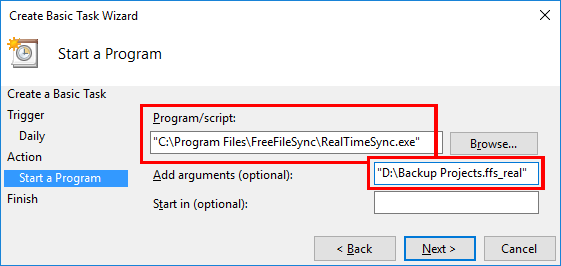
RealTimeSync runs as a background process, requiring no further interaction. There are several ways to start it automatically, depending on your needs. Generally, the goal is to execute a command line of the form:<FreeFileSync installation folder>\RealTimeSync.exe <path to *.ffs_real or *.ffs_batch file>
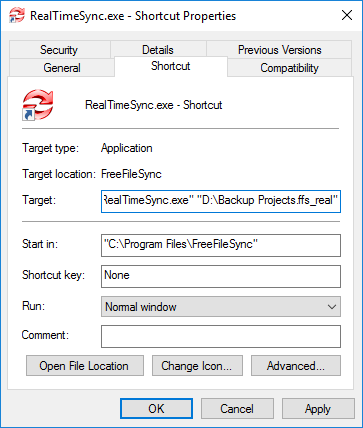
"C:\Program Files\FreeFileSync\RealTimeSync.exe" "D:\Backup Projects.ffs_real"
Example: Run RealTimeSync on Windows login
Create a shortcut with the command line above as target, then place it in the Windows autostart folder. (Type shell:startup in the Windows Explorer address bar to find the folder quickly.)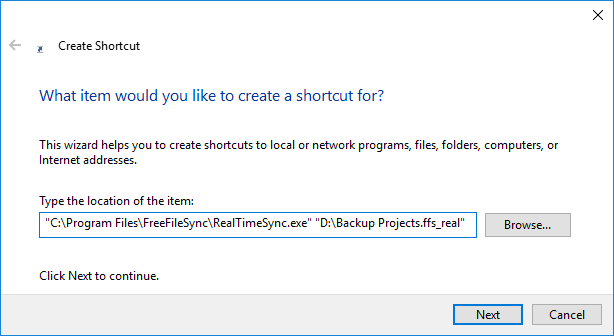
Example: Start RealTimeSync as a Service
To keep RealTimeSync running irrespective of currently logged-in users: Create a task in Windows task scheduler to run the command line above when the system starts. See Schedule Batch Jobs for an example of how to add a task. Then set the task to run under the SYSTEM account, which is always running in the background.